
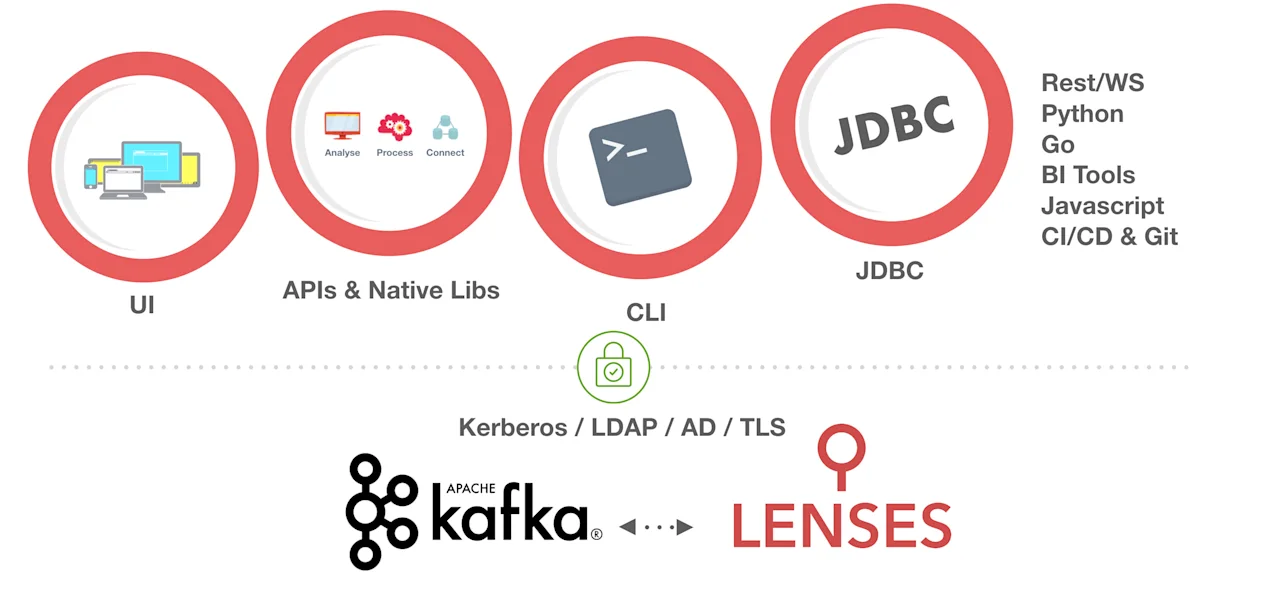
One of the most well supported protocols that the JDK has introduced is the JDBC (Java Database Connectivity) interface for accessing relational databases.
Over two decades since it debuted, the number of supported databases has grown to include databases that are not relational, and in some cases, not even databases.
Now, through the recently released Lenses JDBC driver, Apache Kafka can be added to the list of supported technologies.
Kafka is first and foremost a solution for streaming large volumes of messages, but we often want to browse or query the historical data contained within
Kafka topics. Through the use of a JDBC driver, we can leverage standard tools such as Navicat or Squirrel SQL. In addition, the driver can be used
to open Kafka up to popular BI tools.
The Lenses Box, a docker image for developers comes with a bunch of sample data generators that provide a useful place to start testing the JDBC driver.
The first step is to pull down the latest image.
docker pull landoop/kafka-lenses-dev:latest
Now let's start that up.
```
docker run -e ADV_HOST=127.0.0.1 -e EULA="<your license url here>" --rm -p
3030:3030 -p 9092:9092 -p 2181:2181 -p 8081:8081 -p 9581:9581 -p 9582:9582 -
p 9584:9584 -p 9585:9585 landoop/kafka-lenses-dev:latest
```
The Lenses Box spins up a complete Apache Kafka Development server with a single docker command.
In addition to Kafka you also get a bunch of additional components ranging from UI to API and CLI, connectors and a new shiny
JDBC interface for Apache Kafka.
Once we see in the logs that the broker is ready, Lenses has started.
The broker is accessible at PLAINTEXT://127.0.0.1:9092
Schema Registry at
http://127.0.0.1:8081 and Zookeeper at 127.0.0.1:2181
Next we’ll use Squirrel SQL to connect via Lenses to these Kafka topics. The steps will be broadly the same for any tool that works with JDBC.
If you haven’t already got Squirrel on your system, you can
download it here and install by running:
java -jar path-to-squirrel.jar
Once you’ve installed Squirrel then load it up. You’ll notice a Drivers tab on the left hand side. If this is opened up, there’s an icon to
add a new driver.

Clicking this brings up the Add Driver dialog, which we can use to add a new driver jar. The extra class path tab should be used
to add a path that points to the location of the downloaded Lenses JDBC driver jar. Give the driver a name - anything like Lenses JDBC will be fine.
The name is just so that you can find it in the next step.
The example URL box requires an example of the url used to connect, so we can paste in jdbc:lsql:kafka:http://localhost:3030.
Finally at the bottom we need to add the classname of the Driver which is com.landoop.jdbc4.LsqlDriver.
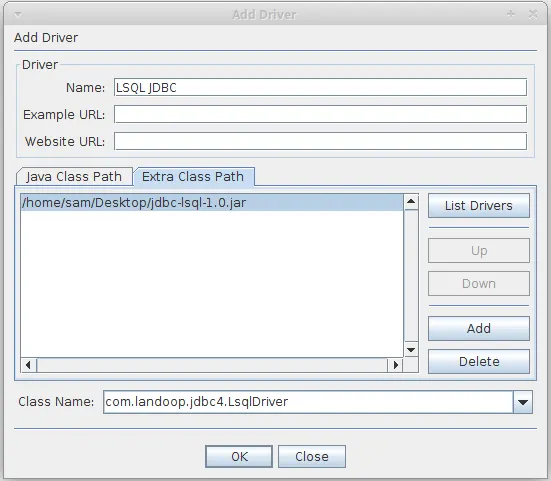
Once the driver is added you should see something like the following message to show it was successful.

To actually open up a connection, we need to use the strangely named aliases, which is Squirrel’s name for connections.
Inside this pane, click the plus icon and then you should see the add alias dialog.
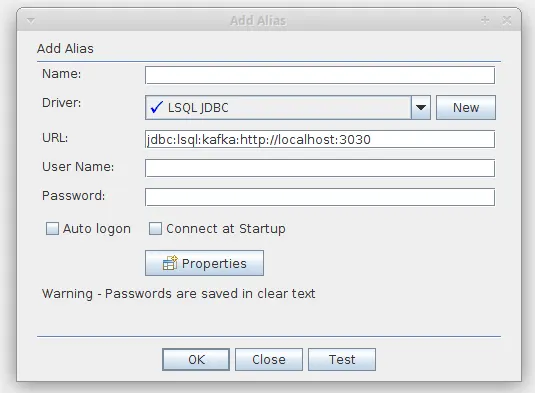
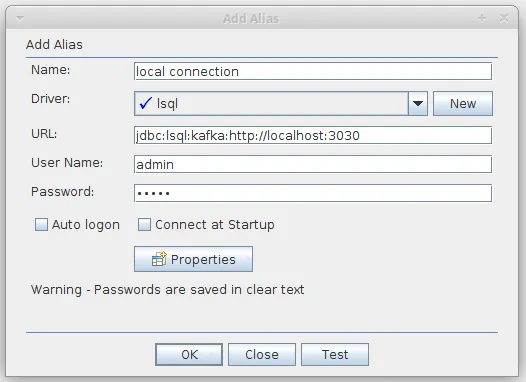
Add the JDBC url which, if you are running the Lenses Box docker image, should bejdbc:lsql:kafka:http://localhost:3030
If you are connecting to another instance elsewhere, then update the hostname and port
appropriately. The rest of the URI should be the same. Supply the username and password - in
our case the default username and password for the development image: (admin/admin)
Once you’re connected you should see the driver properties, and tree nodes for tables and system tables.
Note: Tables are topics you have created and system tables are special “internal” topics used by either Kafka itself or Lenses.
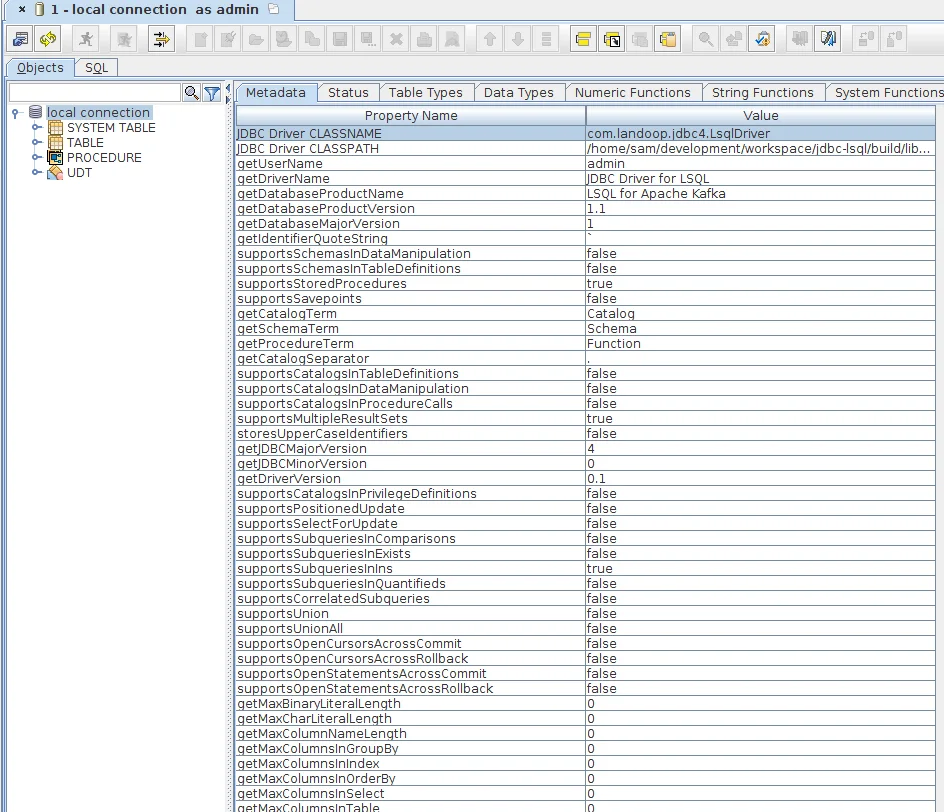
Now you’ve successfully established a connection using JDBC to the Lenses platform. The same steps could be repeated in other JDBC compatible tools. Now use the driver
to issue some queries against our running Lenses instance.
Firstly, lets query one of the sample topics which is cc_data. The query we will use is
select * from cc_data WHERE _vtype=‘AVRO’ AND _ktype=‘STRING’
Enter this into the ‘SQL’ tab and execute. The _vtype and _ktype where clauses are required here (for more information on key and value types see https://docs.lenses.io/lenses-sql).
The query has been dispatched via the driver, through to the Lenses platform, which has then executed the query and returned the results to the driver.
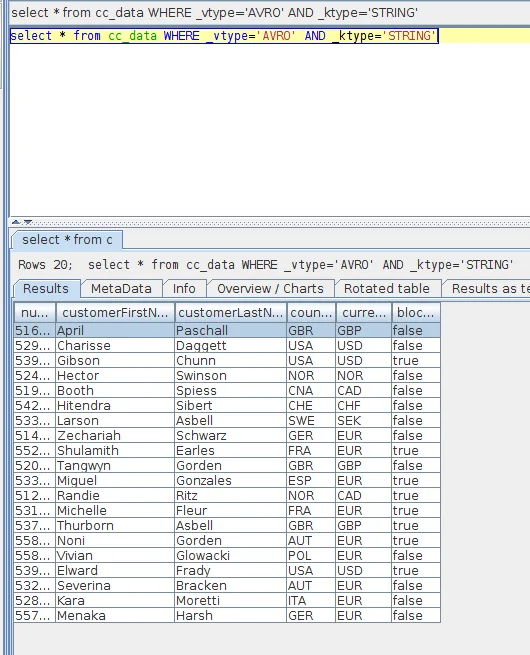
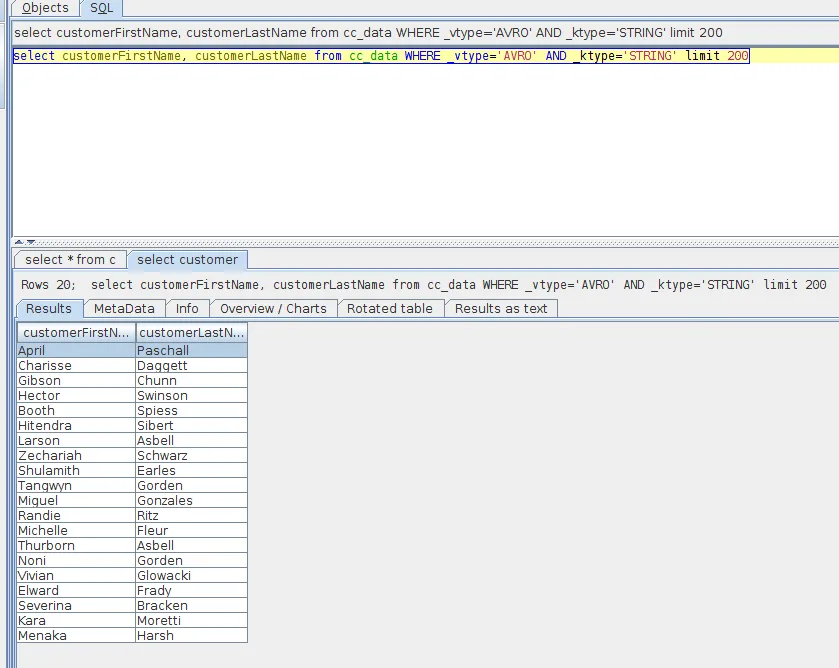
The driver supports the same type of queries as the Lenses platform itself. Here is a more complicated query, this time specifying a projection, and limiting the results:
```
SELECT customerFirstName, customerLastName FROM cc_data
WHERE _vtype=‘AVRO’ AND _ktype=‘STRING’ limit 200
```
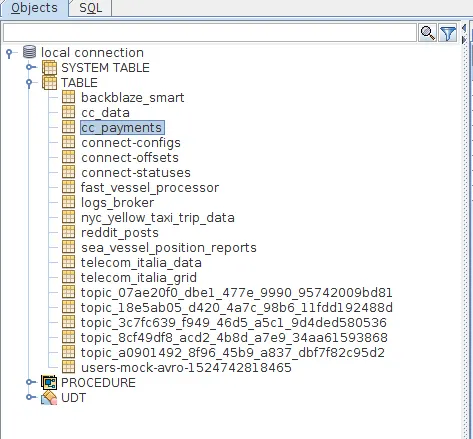
We can also use the metadata supplied by JDBC drivers to browse and explore the topics and fields of the topics. If we expand the ‘table’ node in the object explorer on the left pane, we can see the topics that exist in the Kafka brokers.
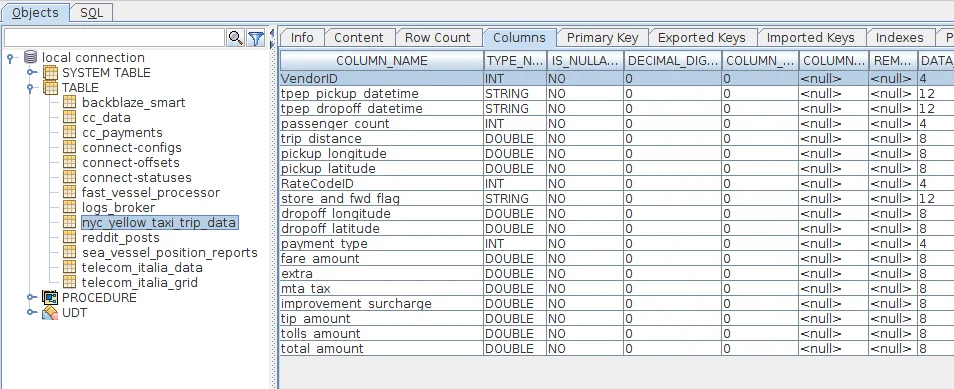
And opening up a particular topic will allow us to see the fields defined on that topic.
This blog covered some of the basic functionality of a the driver when used in a tool chain that supports JDBC. In the next blog we will cover how to use the JDBC driver programatically.
In the next blog in this series of articles you can see how Apache Spark can interact with Apache Kafka via JDBC