
This tutorial will illustrate how you can integrate Lenses into your Jenkins CI/CD using the lenses-cli.
The Lenses CLI allows you to manage your Apache Kafka environment using a single unified and secure API across all Kafka components (Kafka Brokers, Zookeepers, Kafka Connect, Schema Registry etc.).
Integrating Lenses with Jenkins will simplify automating the deployment of real time applications across your different Apache Kafka environments.
To demonstrate the integration, we will simply walk you through a very basic example of triggering a job that uses the lenses-cli
Pre-requisites
In order to be able to follow the steps of this blog, you will need the following:
- Lenses up and running. You can use our free Box instance if necessary.
- A Jenkins server up and running and accessible from the Internet. Additionally, the Jenkins server should have the required plugins for GitHub support installed.
- A working network connection between these two machines.
- A GitHub repository with administrative privileges on it.
The Scenario
The Jenkins job that will be implemented will download lenses-cli
admin
We are going to use a public GitHub repository in order to avoid having to authenticate to GitHub from Jenkins, which will make the scenario more complex. The URL for the GitHub repository is https://github.com/mactsouk/jenkins-blog – you should use your own GitHub repository or any other repository as long as you can create a Webhook for it.
The Implementation
This section will illustrate the steps needed for implementing the scenario.
Note that both Jenkins and Lenses servers will be exposed to the Internet using the ngrok
15789550.ngrok.io
a00474c0.ngrok.io
GitHub Webhook
In order to get the Webhook, you should go to the home page of your repository and then select the Settings
Webhooks
Add Webhook
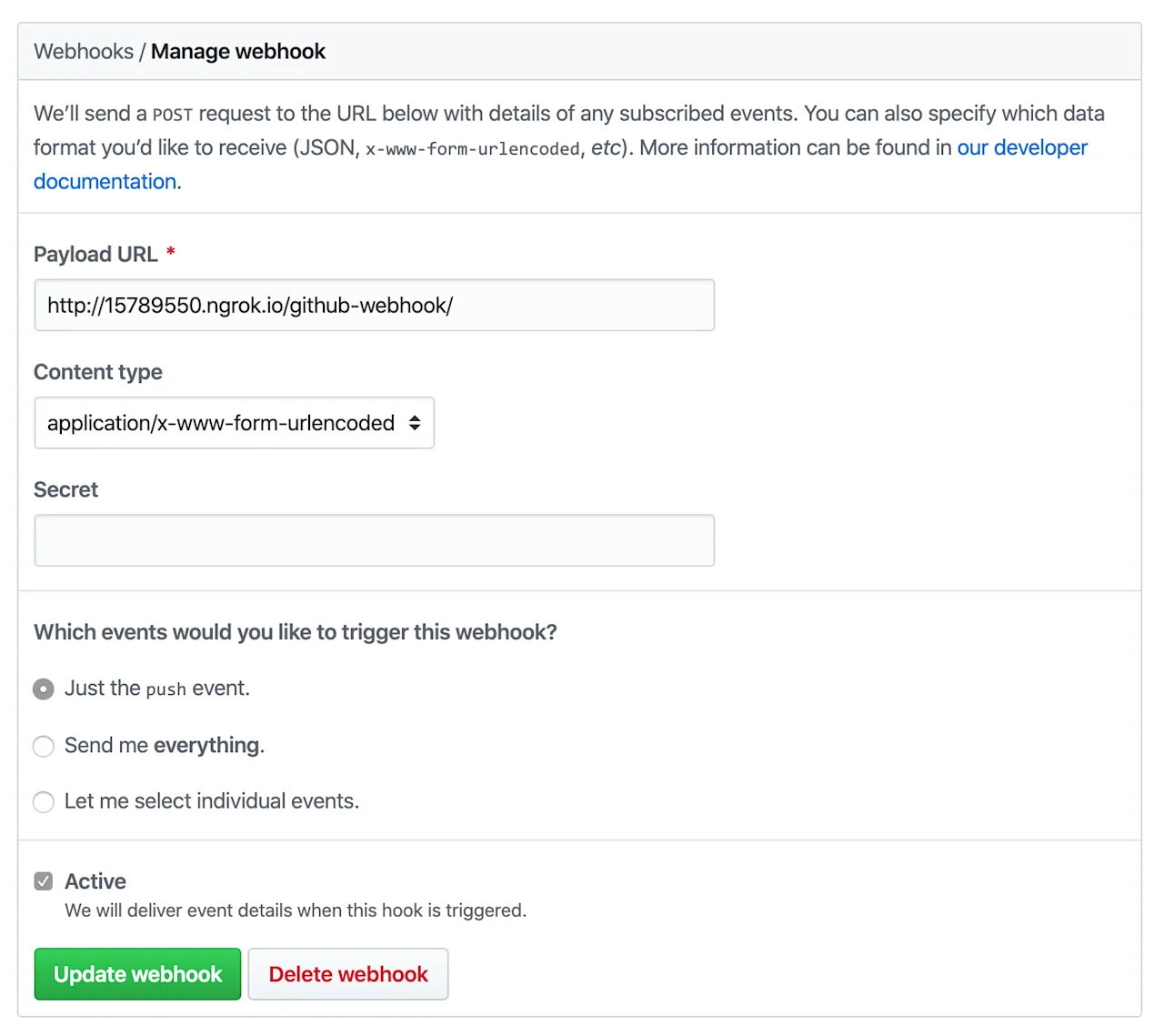
After we are done, we will press the Add Webhook
Update Webhook
/github-webhook/
This step was needed in order for GitHub to inform Jenkins about changes to the GitHub repository.
Creating the Jenkins Job
This is the most critical part of the process as you will need to create a Jenkins job and correctly associate it with the appropriate GitHub repository.
Go to Jenkins UI and click on create new jobs
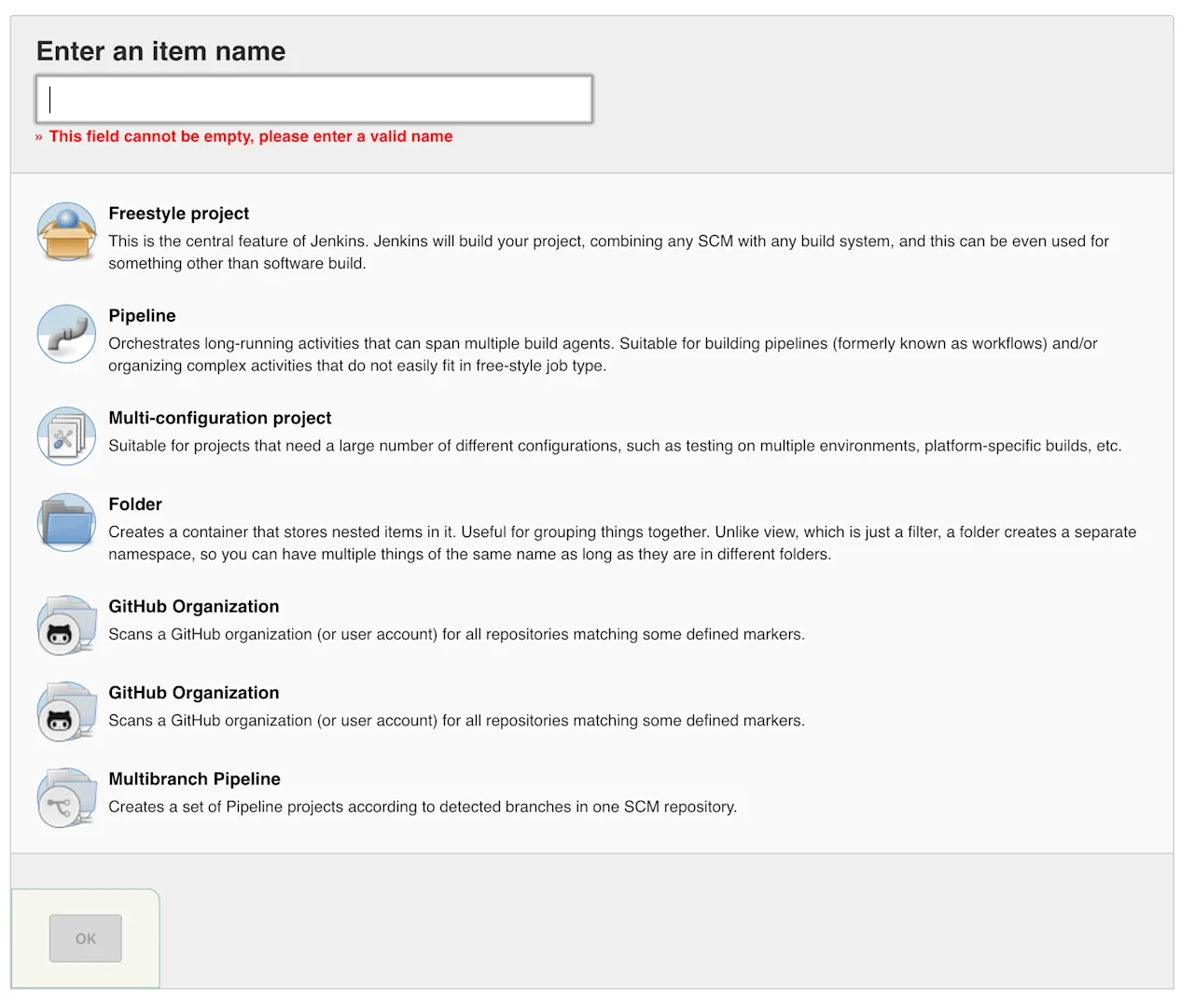
Enter Lenses
Freestyle project
OK
The next string is pretty long so it will be presented in two steps. The first part is about specifying the GitHub project URL and selecting the Source Code Management tool
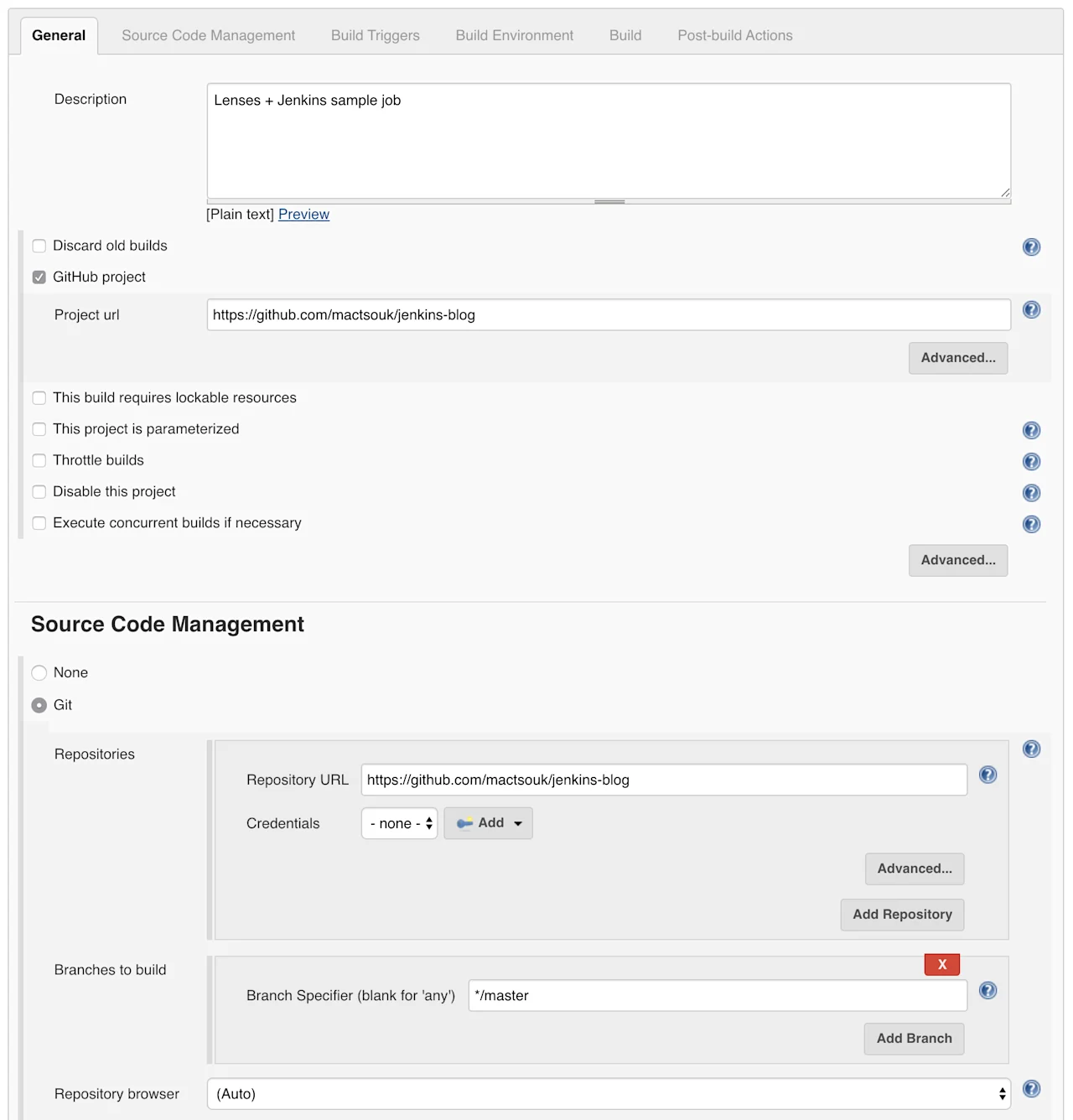
The second part is about selecting the GitHub hook trigger for GITScm polling
Build
Add Build step
Execute shell
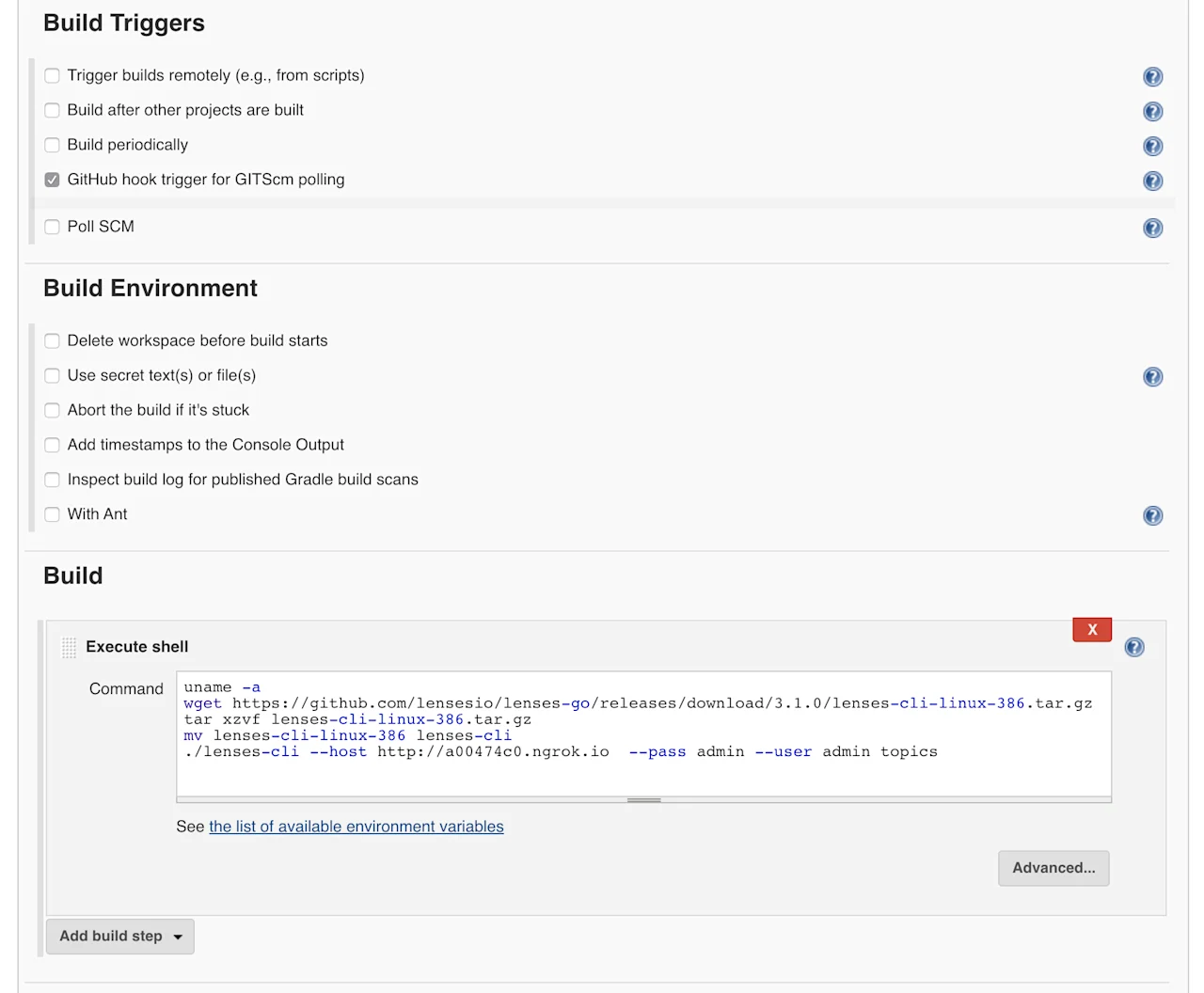
Click on Save
The bash
```
uname -a
wget https://github.com/lensesio/lenses-go/releases/download/3.1.0/lenses-cli-linux-386.tar.gz
tar xzvf lenses-cli-linux-386.tar.gz
mv lenses-cli-linux-386 lenses-cli
./lenses-cli --host http://a00474c0.ngrok.io  --pass admin --user admin topics
```
uname
The wget
lenses-cli
tar
lenses-cli
lenses-cli
(http://a00474c0.ngrok.io
You can also authenticate using a service account if you do not want to use a regular account:
```
lenses-cli --host http://a00474c0.ngrok.io --token <service account name>:
<service token> topics
```
This is a simple job but you can perform any job you want. Look at the GitHub Actions + Lenses blog post for learning how to insert data into Kafka through Lenses using shell commands and at lenses-cli documentation.
Pushing data to the GitHub repository
Now all you have to do is perform a push to the GitHub repository and the Jenkins job will be automatically triggered.
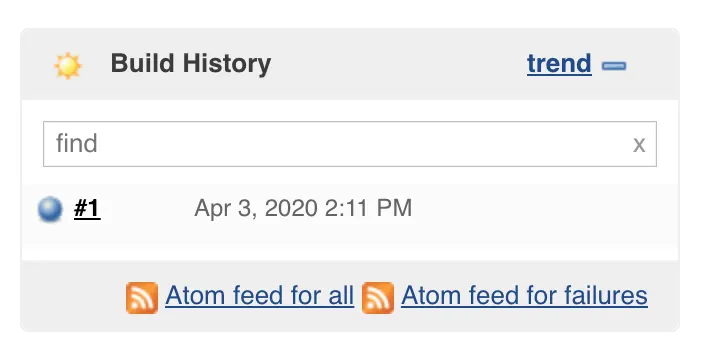
Watching the results
Click on the #1
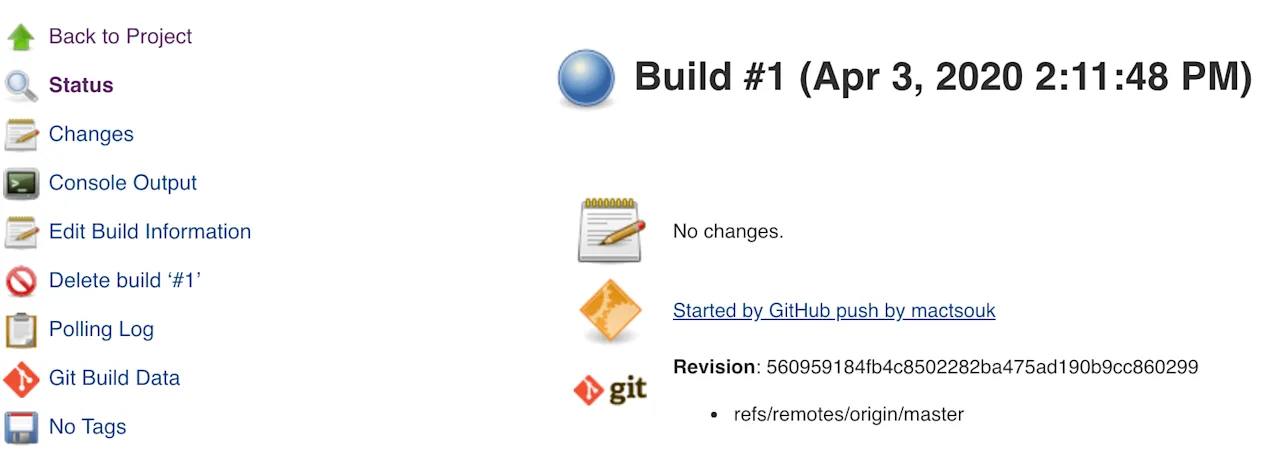
Click on the Console Output
You will see lots of output related to the execution of the wget
wget
--quiet
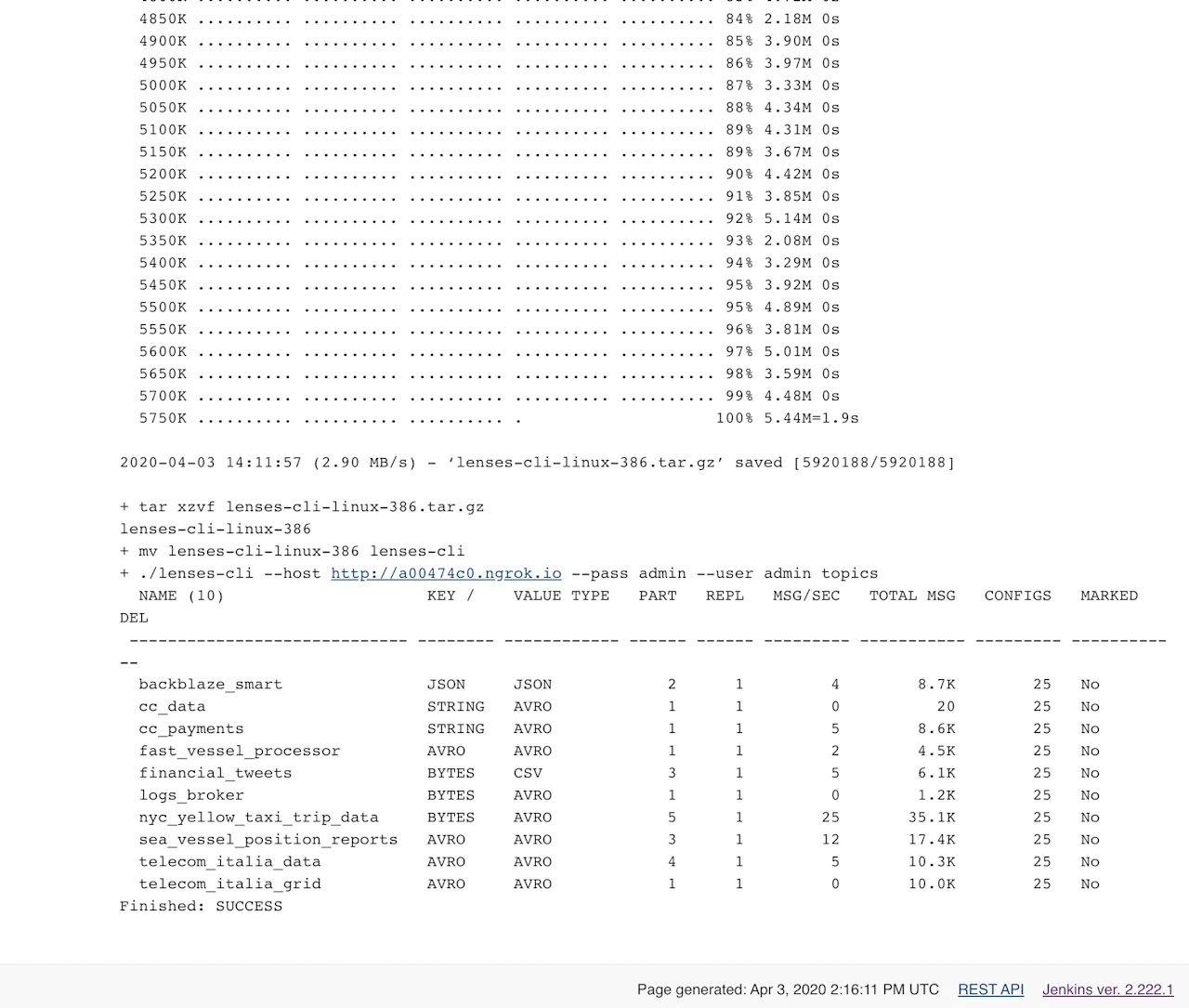
The last output verifies that lenses-cli
Next Steps
Now that you know how to use GitHub actions to communicate with Lenses, you should start automating as many things as possible. Learn how to apply GitOps to your real time pipelines in our blog post.