In this blog post will use a Debezium Connector to capture changes from a MySQL database, send them to Kafka and then move the events into Snowflake.
We will configure, deploy and monitor this flow using a single DataOps tool.
What is Lenses
Lenses is lightweight and delivers DataOps for your data infrastructure on Apache Kafka and Kubernetes. It provides APIs and a
To play this video, accept functional cookies in your privacy settings.
Vimeo video
We will be using low-code methods to deploy data integration using Kafka Connect and will manage them via GitOps.
What is Debezium
Debezium offers an open source collection of Kafka Connectors that can turn data stores into event streams. That means that you can easily move to event-based architectures and build logic that responds to row-level changes in a data store.
You can read more about the Debezium MySQL connector here.
What is CDC
CDC means Change Data Capture and is a design pattern that monitors and captures any changes in a data store by reading the bin-logs, avoiding the performance impact that a typical JDBC connector applies.
In our example, we will capture all the changes on a MySQL database using CDC and pass
the change events to Kafka.
What is Snowflake
Snowflake is a Cloud data warehouse that can store both structured and semi-structured data.
Pre-requisites
You are going to need to have Lenses for this tutorial.
You can point Lenses to your Kafka and Kubernetes (if you have one) clusters. To make things easier for this guide, we are going to use the Lenses+Kafka all-in-one free “Lenses Community Edition” docker compose file.
Additionally, you will need to have a valid account to Snowflake.
Use our free, open-source Debezium Connector to communicate with your MySQL database.
The scenario that will be implemented
The scenario that is going to be implemented has the following steps:
- Setup a MySQL database with sample data.
- Import data from the MySQL to a Lenses with Kafka using Debezium.
- Export the data into Snowflake.
Setting up MySQL
You do not need to do something special in the MySQL database that you are using.
What is important is that MySQL is running and that you know the TCP port, username and password required to connect. For the purposes of this tutorial, MySQL will run on a Docker image. You can get the MySQL Docker image as follows:
docker pull debezium/example-mysql:0.10
Notice that this Docker image contains sample data on a database named inventory
which is the one that is going to be monitored.
After that you can execute that Docker image as follows:
```
docker run -it --name mysql -p 3306:3306 -e MYSQL_ROOT_PASSWORD=debezium \
-e MYSQL_USER=mysqluser -e MYSQL_PASSWORD=dbz-pass debezium/example-
mysql:0.10
```
The username that we will be using is root
debezium
be used when setting up the Debezium Connector. Also notice that the name of the image
as defined using --name mysql
mysql
If you do not want to keep the Debezium Docker image on your computer, you can bypass the docker pull
docker run
--rm
If you want to connect to that Docker image using the sqlclient
the following command, which runs the mysql
mysql:5.7
```
docker run -it --rm --name mysqlterm --link mysql --rm mysql:5.7 \
sh -c 'exec mysql -h"$MYSQL_PORT_3306_TCP_ADDR" -
P"$MYSQL_PORT_3306_TCP_PORT" \
-uroot -p"$MYSQL_ENV_MYSQL_ROOT_PASSWORD"'
```
From there you can inspect the contents of the inventory
changes to the contents of its tables.
Setting Up Lenses
Setting up Lenses Community Edition is as simple as executing the command:
```
curl -L https://lenses.io/preview -o docker-compose.yml && ACCEPT_EULA=true docker compose up -d --wait && echo "Lenses.io is running on http://localhost:9991"
```
IMPORTANT: When you registered for the “Lenses Community Edition”, you would have received the above docker command with a valid free license (instead of the “xxxxxxxxx” in the id parameter). Check your emails for your unique command.
You need the --link mysql:mysql
the Docker image with MySQL, which is going to be called mysql
MySQL Docker image named mysql
docker run
command to work.
You might need to wait a little for the Lenses Docker image to load all necessary
components. After that you will be able to connect to Lenses from your favorite
web browser on port 9991 – the username and the password are both admin
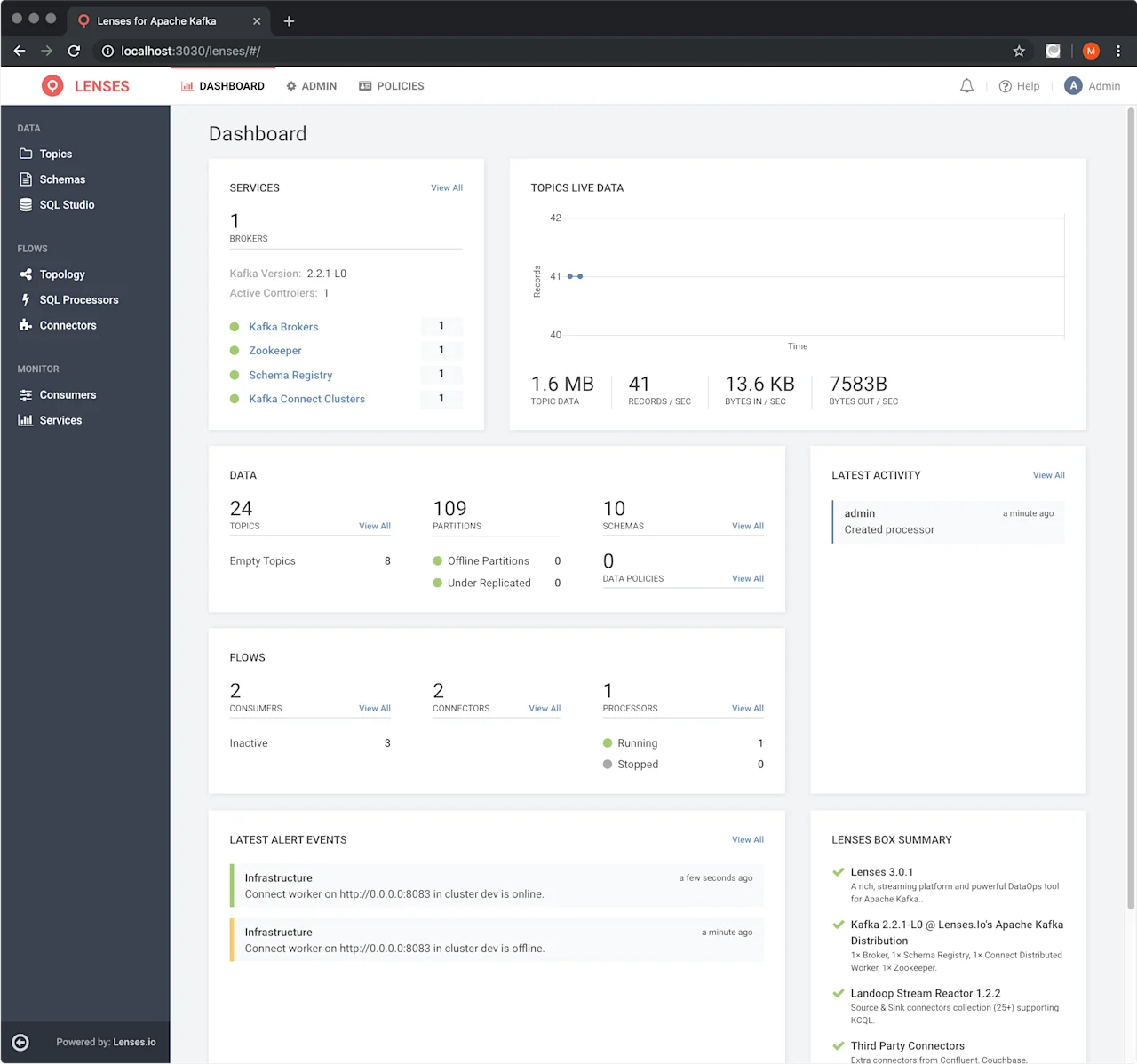
After connecting, you will see the image that follows on your web browser.
Setting Up Snowflake
You will need a Snowflake account in order to be able to use it. The easiest
way is to visit https://trial.snowflake.com and create a trial account.
For the purposes of this tutorial the Snowflake username is mihalis
the password will not be needed for creating the connection between Lenses and
Snowflake. However, you will still need your Snowflake password for connecting to
the Snowflake UI.
The name of the Snowflake server isre91701.eu-west-1.snowflakecomputing.com
if you try to follow this tutorial, you will have to replacere91701.eu-west-1.snowflakecomputing.com
Installing Snowflake Kafka Connector
We will need to install the Snowflake Kafka Connector to a Lenses Community Edition.
We will be using version 0.4.0 of the Snowflake Kafka Connector. Please visit
this page
for the full list of available Snowflake Kafka Connectors.
You will need to connect to the Docker image of the Lenses with the following command:
docker exec -it lenses-dev bash
Notice that the name of the Lenses being used is lenses-dev
using the --name=lenses-dev
The previous step is required because you will need to install the Snowflake Connector
inside the running Lenses.
You will need to download the Snowflake Kafka Connector with the command:
```
wget https://repo1.maven.org/maven2/com/snowflake/snowflake-kafka-
connector/0.4.0/snowflake-kafka-connector-0.4.0.jar
```
Put the downloaded file in the right directory with:
mv snowflake-kafka-connector-0.4.0.jar /run/connect/connectors/third-party/
Congratulations, you have just installed the Snowflake Kafka Connector jar file by
putting it in the /run/connect/connectors/third-party/
However, you will need to edit /run/lenses/lenses.conf
at the end of the Lenses configuration file in order for Lenses to understand the
Snowflake Connector:
```
lenses {
  connectors.info = [
      {
           class.name = "com.snowflake.kafka.connector.SnowflakeSinkConnector"
           name = "Snowflake Kafka Connector"
           sink = true
           description = "A description for the connector"
           author = "The connector author"
      }
  ]
}
```
Execute the following commands, which are needed for the Snowflake Connector to
work:
```
mkdir -p /.cache/snowflake
chmod -R 777 /.cache/snowflake
```
The last commands that you need to execute is the following:
```
supervisorctl restart connect-distributed
supervisorctl restart lenses
```
The former command tells Lenses to search for new Connectors whereas the latter
command restarts Lenses in order to reread the new configuration from/run/lenses/lenses.conf
Using the Snowflake Connector for Kafka
In order to make sure that the Snowflake Kafka Connector is property installed you
will need to visit the Connectors link inside Lenses and press the
+ New Connector button.
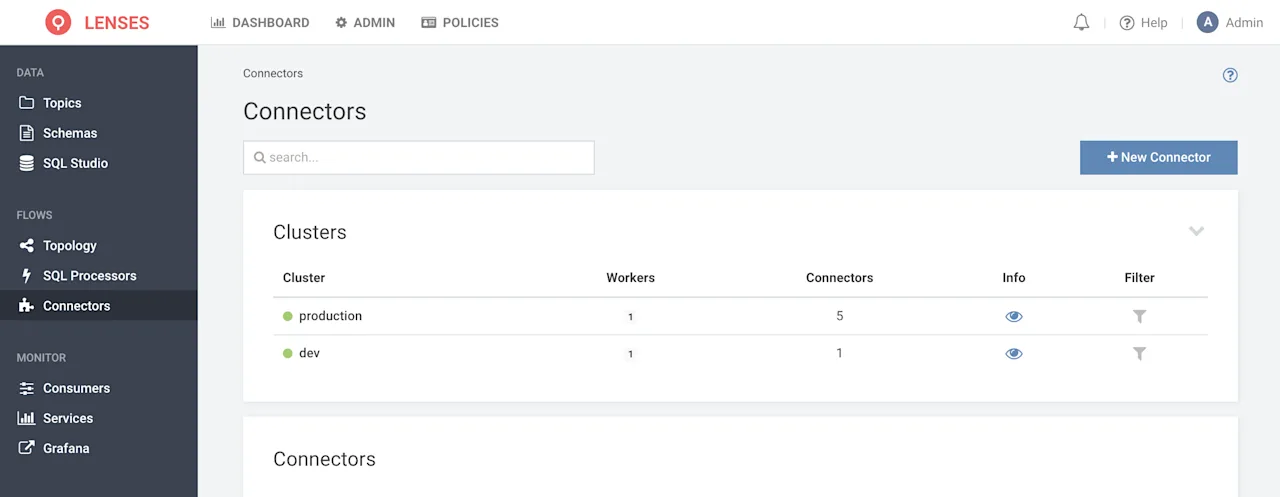
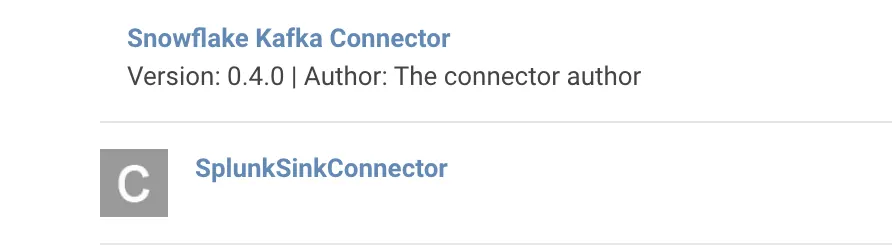
The following image proves that the Snowflake Connector
is recognized by Lenses Community Edition and therefore is properly installed.
You can find more information about the Snowflake Kafka Connector
here.
Getting data from MySQL to Lenses and Kafka
As stated before, we are going to use the Debezium Connector to get row-level changes
from MySQL to Kafka.
Using Debezium to put data into Lenses Community Edition
We will now create a new Connector using the Debezium MySQL Connector available
in Lenses. The Debezium configuration will be the following:
```
name=MySQL-CDC
connector.class=io.debezium.connector.mysql.MySqlConnector
tasks.max=1
database.hostname=mysql
database.port=3306
database.user=root
database.password=debezium
database.server.name=dbserver1
database.whitelist=inventory
database.history.kafka.bootstrap.servers=localhost:9092
database.history.kafka.topic=schema-changes.inventory
value.converter=org.apache.kafka.connect.json.JsonConverter
key.converter=org.apache.kafka.connect.json.JsonConverter
```
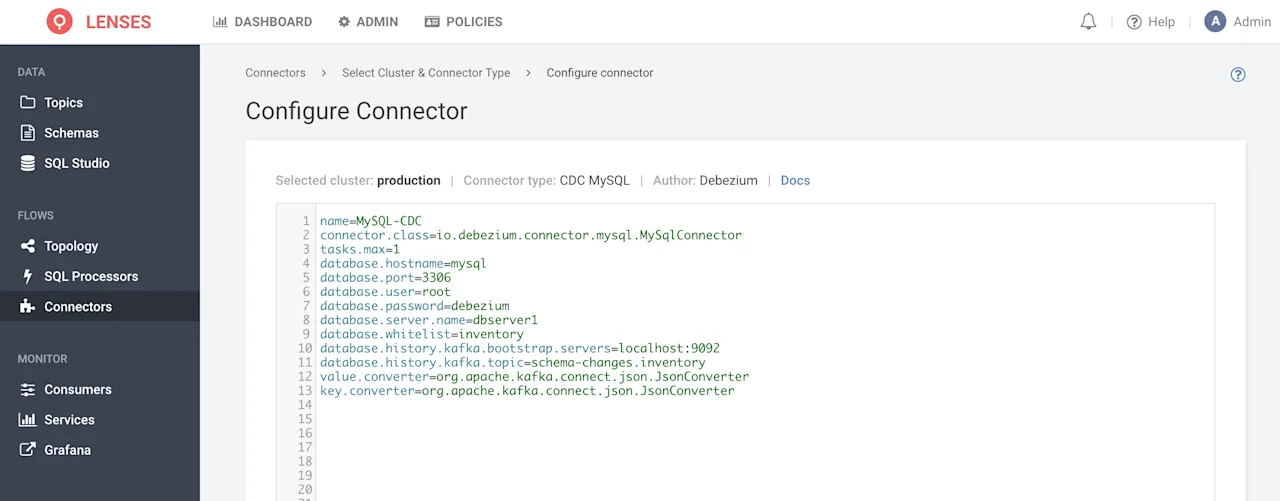
The name of the MySQL database that we are going to watch is inventory
in the debezium/example-mysql:0.10
Now, connect to the MySQL database using the command we talked about earlier:
```
docker run -it --rm --name mysqlterm --link mysql --rm mysql:5.7 \
sh -c 'exec mysql -h"$MYSQL_PORT_3306_TCP_ADDR" -
P"$MYSQL_PORT_3306_TCP_PORT" \
-uroot -p"$MYSQL_ENV_MYSQL_ROOT_PASSWORD"'
```
Then, create a new table named profits
inventory
```
use inventory;
CREATE TABLE `profits` ( `product_id` int(11) NOT NULL, `amount` int(11) NOT
NULL, PRIMARY KEY (`product_id`)) ENGINE=InnoDB DEFAULT CHARSET=latin1;
```
Verify data published to Kafka
Within Lenses, go to the Topics >> schema-changes.inventory
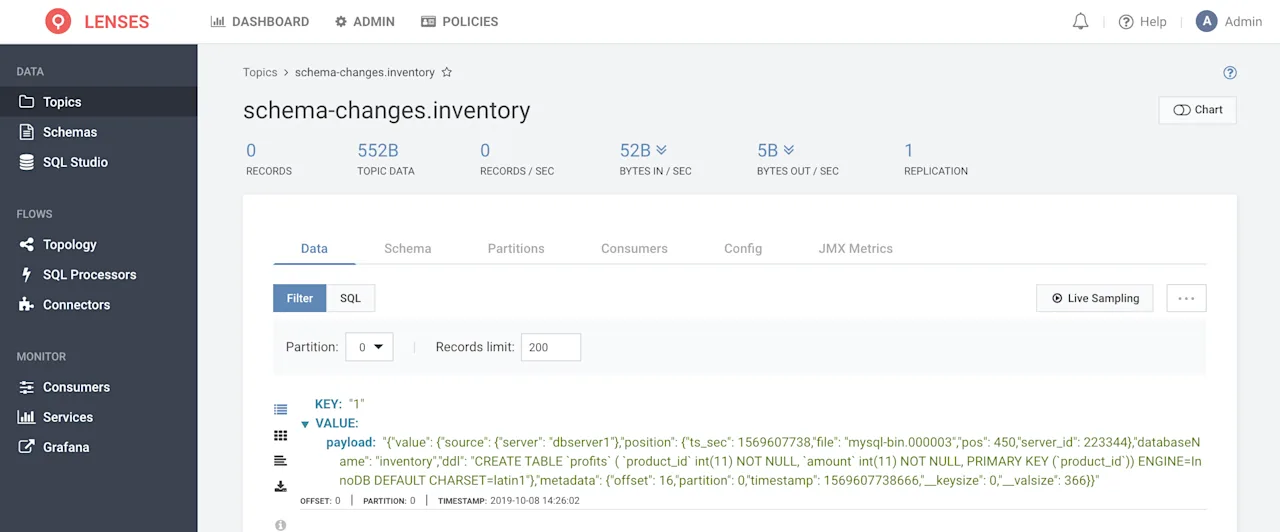
There will be a new record to the schema-changes.inventory
in JSON format will look similar to the following:
```
{
    "value": {
        "source": {
            "server": "dbserver1"
        },
        "position": {
            "ts_sec": 1569607738,
            "file": "mysql-bin.000003",
            "pos": 450,
            "server_id": 223344
        },
        "databaseName": "inventory",
        "ddl": "CREATE TABLE `profits` ( `product_id` int(11) NOT NULL, `amount` int(11) NOT NULL, PRIMARY KEY (`product_id`)) ENGINE=InnoDB DEFAULT CHARSET=latin1"
    },
    "metadata": {
        "offset": 16,
        "partition": 0,
        "timestamp": 1569607738666,
        "__keysize": 0,
        "__valsize": 366
    }
}
```
This proves that everything works well with Debezium and Lenses.
Stream Process events before sending to Snowflake
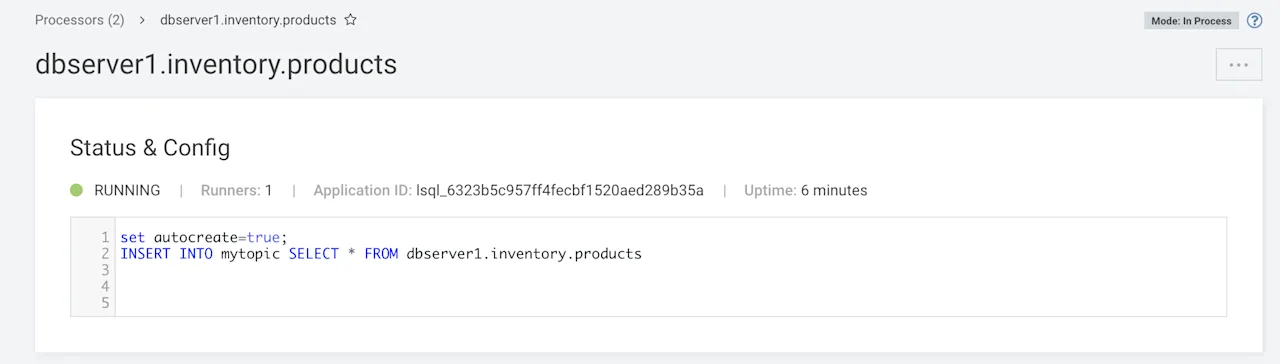
So, imagine that you want to transfer data from dbserver1.inventory.products
Snowflake.
In this case, you will need to rename that topic into something simpler
because it looks like Snowflake hates dot characters in topic names. The easiest way
to do that is using a SQL processor (SQL Processor >> New Processor) that will continuously process events
and transform them via an SQL statement.
For the purposes of this tutorial, the code for
the SQL processor will be the following:
```
set autocreate=true;
INSERT INTO mytopic SELECT * FROM dbserver1.inventory.products
```
The new name for dbserver1.inventory.products
mytopic
dbserver1.inventory.products
a graphical way.
Connecting Lenses to Snowflake
After the installation of the Snowflake Kafka Connector, the process of connecting
Lenses and Snowflake is straightforward.
Create a new Sink using the Snowflake Connector in Connectors >> New Connector >> Snowflake. The configuration for the Snowflake Sink
in Lenses will be the following:
```
connector.class=com.snowflake.kafka.connector.SnowflakeSinkConnector
snowflake.topic2table.map=mytopic:external
tasks.max=1
topics=mytopic
snowflake.url.name=https://re91701.eu-west-1.snowflakecomputing.com
snowflake.database.name=mydb
snowflake.schema.name=public
value.converter.schema.registry.url=http://localhost:8081
buffer.count.records=10000
snowflake.user.name=mihalis
snowflake.private.key=REALLY_LOOOOOOOONG_STRING_READ_HOW_TO_FIND_IT
name=snowflake
snowflake.user.role=sysadmin
value.converter=com.snowflake.kafka.connector.records.SnowflakeJsonConverter
key.converter=com.snowflake.kafka.connector.records.SnowflakeJsonConverter
buffer.size.bytes=5242880
```
In order to get the correct value for snowflake.private.key
this
and follow the instructions.
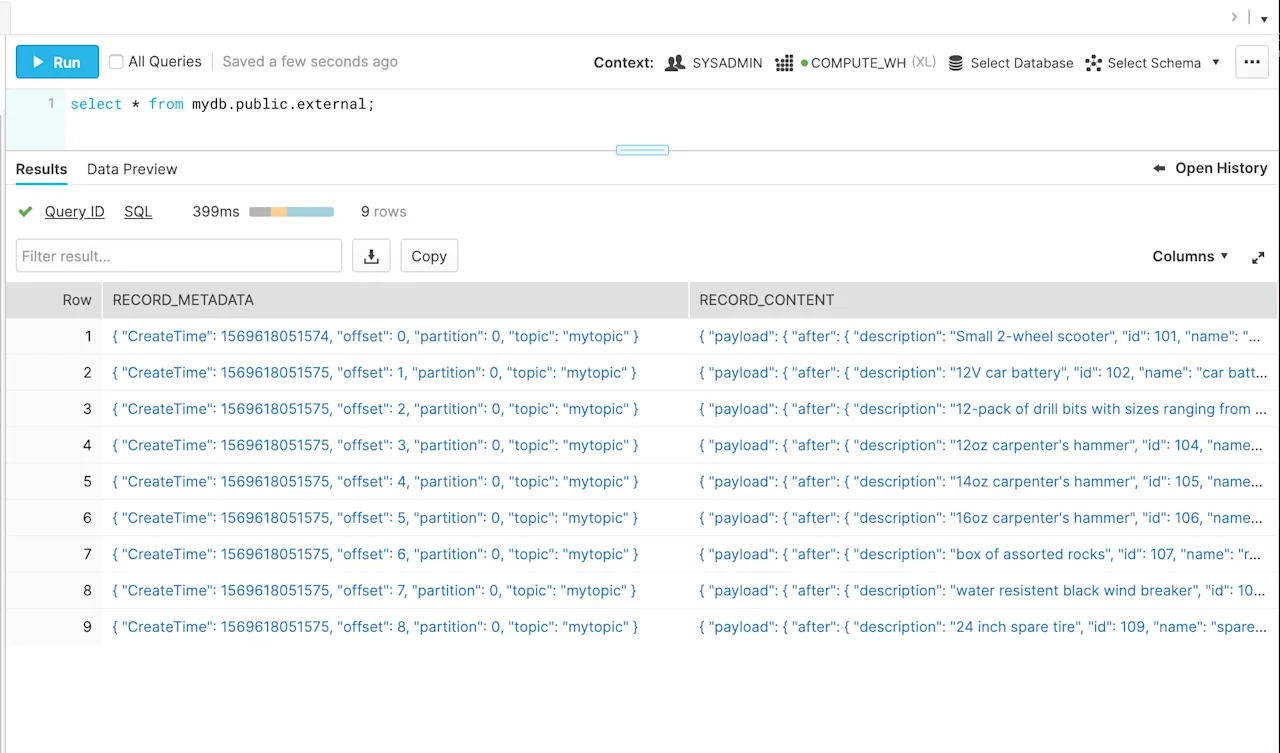
Visiting Snowflake will verify that the data from Lenses is sent to Snowflake
successfully. Data is read from mytopic
external
Snowflake. The Snowflake database and schema used are mydb
public
Conclusions
Lenses provides a DataOps layer to configure, manage, debug and deploy flows. You can manage these flows via GitOps and leverage Lenses to bake in monitoring, alerting and data compliance. Check out our other blogs for more info.
Links & Next Steps
Get familar with everything you can do with Lenses Community Edition in this tour: