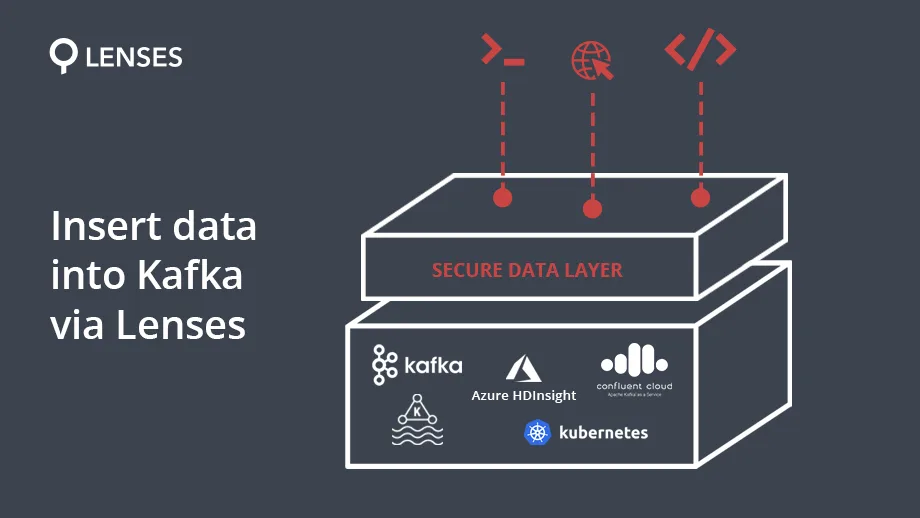
Lenses provides a secure access layer to streaming data for any Apache Kafka (self-managed, AWS MSK, HDInsight etc.).
As well as being able to query data via SQL, you can also produce data into a topic. This adds an extra level of security and auditing since Lenses works at the application layer and is protected by fine-grained security via namespaces.
Let’s take a look at four different ways of injecting data into a Kafka Topic via Lenses.
Pre-requisites
To make it easier to follow this guide please download the free Lenses Docker “Box” image from here.
Additionally, you should get the Lenses CLI here.
As Lenses comes with sample Kafka topics populated with data, this tutorial will use an
existing Kafka topic.
Using Lenses UI
There exist two distinct ways to insert data into a Kafka topic from Lenses UI. By inserting your own events or by inserting data that is automatically generated by Lenses.
Inserting your own data
From the SQL Studio page, simply write the following SQL code:
```
INSERT INTO
cc_data(_key,number,customerFirstName,customerLastName,country,currency,bloc
ked)
VALUES ("Using-sql-studio","SQL","Studio","test","","",false);
```
One way of verifying data has been inserted is via the Topics
cc_data
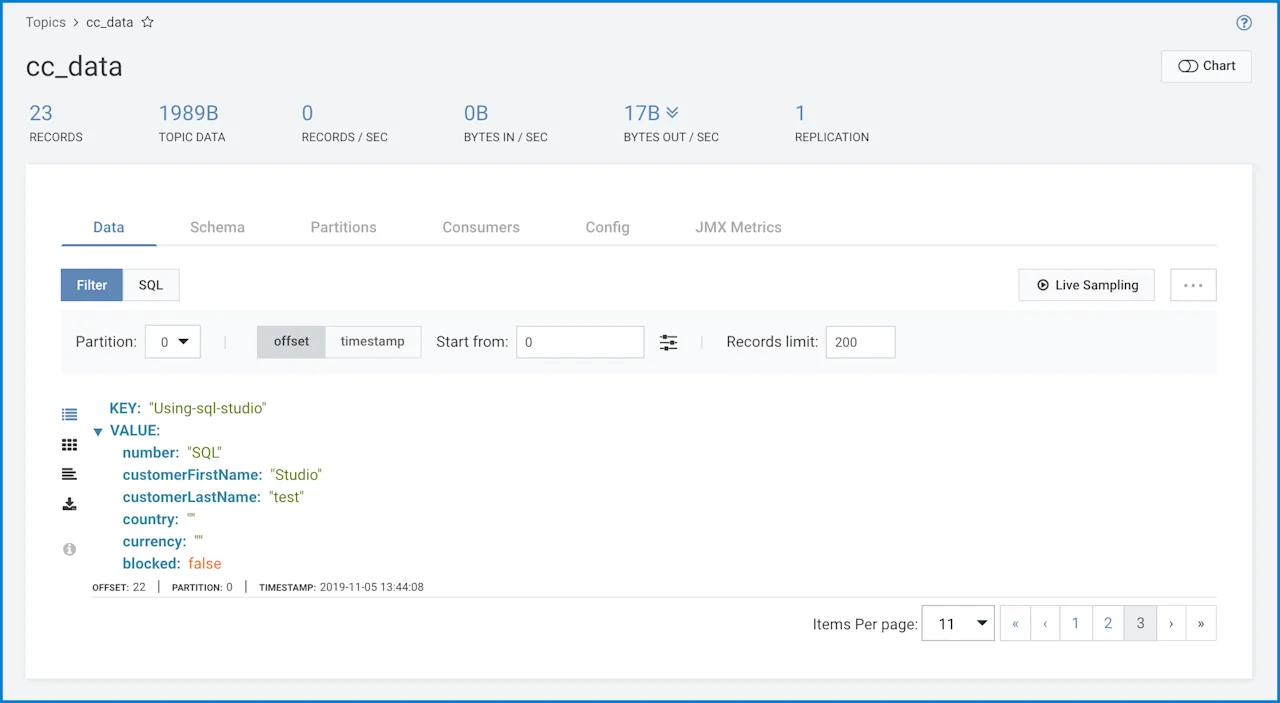
Alternatively, you can execute the following SELECT
SELECT * FROM cc_data where _key='Using-sql-studio'
Using Auto Generated Data
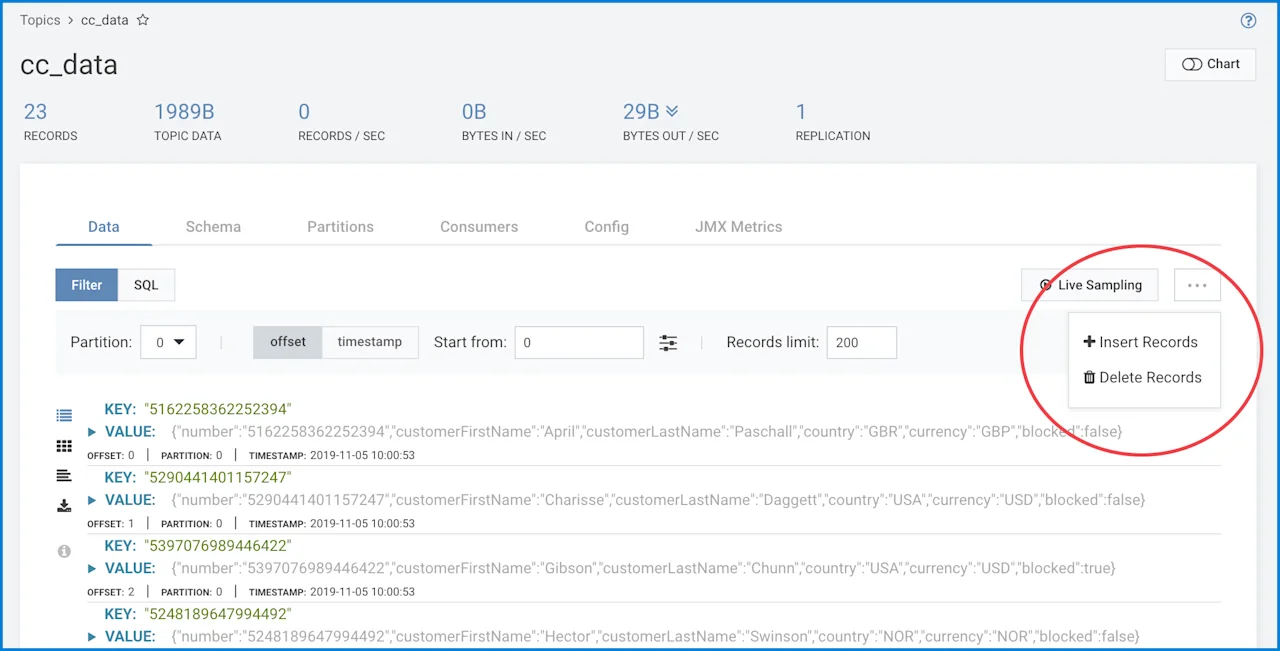
From the Topics
cc_data
From the bottom on upper-right side of page, select Insert Records
By clicking Autogenerate
```
[
    {
        "key": "...",
        "value": {
            "number": "icrxkbkvHpk",
            "customerFirstName": "TUMOeiPvUsLYdyJTKeBNp",
            "customerLastName": "sdkNpJQeKlIwWpJenkxEGN",
            "country": "fGgMjNFTbTuBmKGOpFyJRUTOj",
            "currency": "yntJh",
            "blocked": false
        }
    }
]
```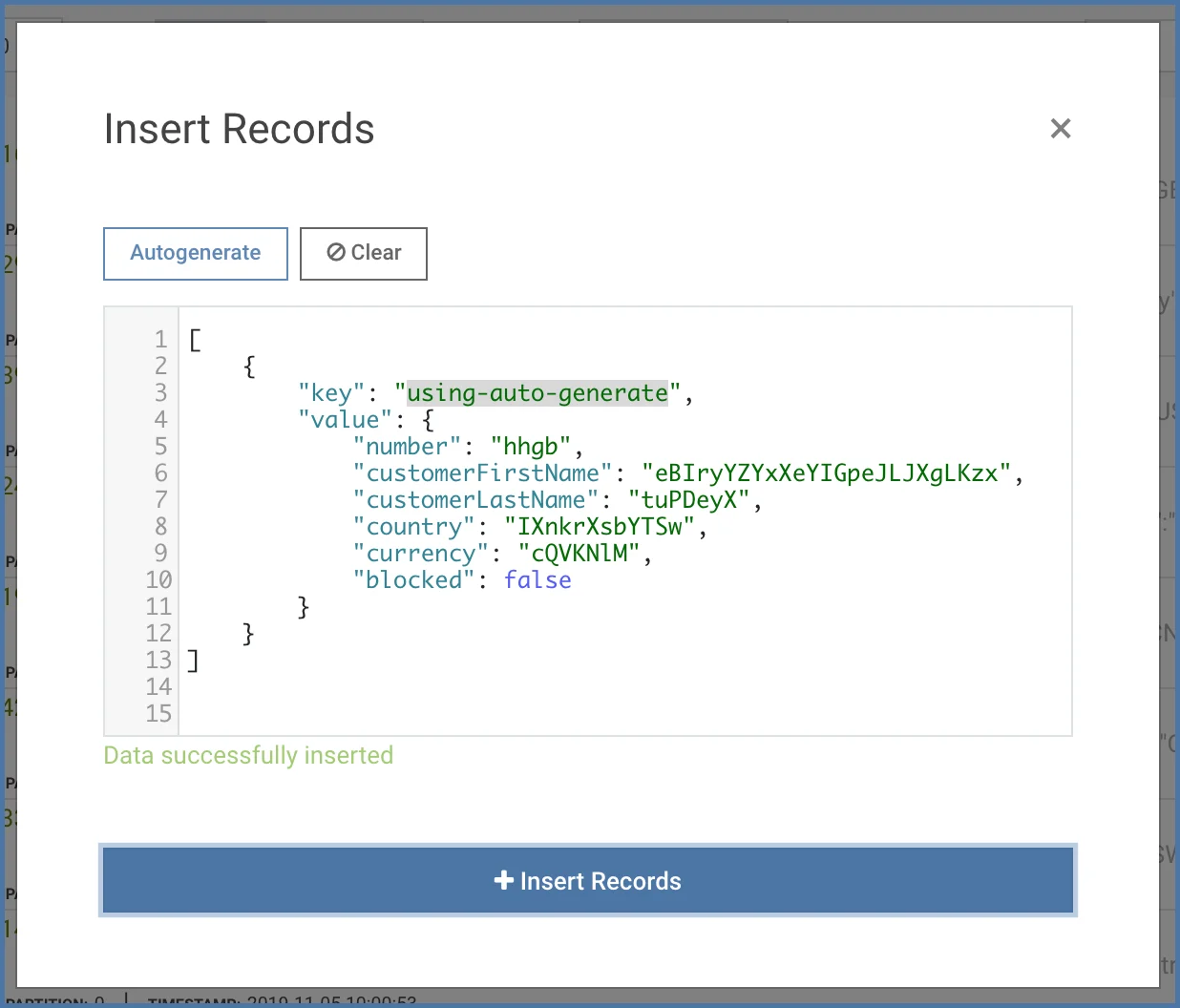
The key for the record can be either specified by you or by Lenses and Kafka. In
this case it is specified by us and will be using-auto-generate
will need to press the + Insert Records
The following SELECT
cc_data
SELECT * FROM cc_data where _key='using-auto-generate'
Using Lenses Data API
The remaining three ways will use Lenses Data API to insert data into an existing
Kafka topic.
Using Lenses CLI
Execute the lenses-cli shell
lenses-cli
```
lenses-cli shell

    __                                 ________    ____
   / /   ___  ____  ________  _____   / ____/ /   /  _/
  / /   / _ \/ __ \/ ___/ _ \/ ___/  / /   / /    / /
 / /___/  __/ / / (__  )  __(__  )  / /___/ /____/ /
/_____/\___/_/ /_/____/\___/____/   \____/_____/___/
Docs at https://docs.lenses.io
Connected to [http://localhost:3030] as [admin], context [box]
Use "!" to set output options [!keys|!keysOnly|!stats|!meta|!pretty]
Crtl+D to exit

lenses-sql> INSERT INTO cc_data(_key,numlenses-sql> INSERT INTO
    cc_data(_key,number,customerFirstName,customerLastName,country,currency,blocked)
    VALUES ("Using lenses-cli","test","test","test","","",false);
{"flag":true,"info":"1 records inserted"}

```
You can verify that the record is there by executing the following SQL statement:
```
lenses - sql >
SELECT * FROM cc_data
WHERE _key = 'Using lenses-cli'
LIMIT  1;
{ "number" : "test",
"customerFirstName" : "test",
"customerLastName" : "test",
"country" : "",
"currency" : "",
"blocked" : false}
```
Using the Command Line
This method uses a command line utility like curl(1)
insert data into a Kafka topic. You will need to have your data stored in JSON format.
In order to connect to Lenses using curl(1)
that is connected to your current connection. In order to get that authentication token you
will need to execute the following command first:
```
curl -H 'Content-Type: application/json' --request POST --data
'{"user":"admin","password":"admin"}' http://localhost:3030/api/login
```
The output of that command will be the authentication token, which will have a format
similar to 16a8b2dd-b2d0-449e-8203-9dd51d7950cf
in the presented bash(1)
Lenses also provides the ability to create service account tokens.
The data will be in a JSON file named /tmp/myData.json
```
[
        {
                "key": "using-command-line-bash",
                "value": {
                        "number": "123456789",
                        "customerFirstName": "Lenses",
                        "customerLastName": "Kafka HTTP",
                        "country": "GR",
                        "currency": "Euro",
                        "blocked": false
                }
        }
]
```
A bash(1)
insertData.sh
more user friendly:
```
#!/usr/bin/env bash

if [ "$#" -lt 1 ]
then
    echo "Usage: $0 filename"
    exit
fi
filename=$1

if [[ ! -e "${filename}" ]]
then
    echo "${filename} does not exist!"
    exit
fi

endpoint="http://localhost:3030/api/jdbc/insert/prepared/cc_data?kt=STRING&vt=AVRO"
# get token
token=$(curl -H 'Content-Type: application/json' --request POST --data \
'{"user":"admin","password":"admin"}' http://localhost:3030/api/login 2>/dev/null)

# send data
curl -H "X-Kafka-Lenses-Token:${token}" --request POST --data @${filename} ${endpoint} -w '\n\n' 2>/dev/null
```
The insertData.sh
of the JSON file. Executing insertData.sh
./insertData.sh /tmp/myData.json
The request has been fulfilled and resulted in a new resource being created.
You can verify that the insert operation was successful using lenses-cli shell
```
lenses-sql> SELECT * FROM cc_data WHERE _key='using-command-line-bash' LIMIT 1;
{"number":"123456789","customerFirstName":"Lenses","customerLastName":"Kafka HTTP","country":"GR","currency":"Euro","blocked":false}
```
Creating a Client in Python 3
Here we are going to develop a Lenses client. We will use Python 3 but you can use any programming language you want provided that it supports the needed functionality.
The name of the Python 3 utility is insertData.py
```
#!/usr/bin/env python3

import json
from requests import get, delete, post, put
from json import loads
from pprint import pprint as echo
import websocket

VALIDATE_SQL_QUERY = '/api/sql/validation'
SQL_END_POINT = "/api/ws/v2/sql/execute?"

class myPythonClient():
    def __init__(self, url, username, password):
        self.url = url
        self.username = username
        self.password = password
        self.test = self.connect()
        self.default_headers = {'Content-Type': 'application/json', 'Accept': 'application/json', 'x-kafka-lenses-token': self.token}
        self.default_headers_2 = {'Content-Type': 'text/event-stream', 'Accept': 'text/event-stream', 'x-kafka-lenses-token': self.token}
    def connect(self):
        LOGIN = "/api/login"
        login_url = self.url + LOGIN
        payload = {'user': self.username, 'password': self.password}
        default_headers = {'Content-Type': 'application/json', 'Accept': 'application/json, text/plain'}
        response = post(login_url, data=json.dumps(payload), headers=default_headers)
        if response.status_code != 200:
            raise Exception("Could not connect to the API [{}]. Status code [{}]. Reason [{}]"\
            .format(login_url, response.status_code, response.reason))
        else:
            self.token = response.text
            if self.token == None:
                raise Exception("Cannot recieve Token.")
        AUTH = "/api/auth"
        auth_url = self.url + AUTH
        new_headers = {"X-Kafka-Lenses-Token": self.token}
        response = get(auth_url, headers=new_headers)
        if response.status_code != 200:
            raise Exception("Could not connect to the API [{}]. Status code [{}]. Reason [{}]"\
             .format(auth_url, response.status_code, response.reason))
        else:
            self.token = response.json().get("token", None)
        return self.token
    def execSQL(self, query=None):
        self.query = query
        self.params = {'sql': self.query}
        if 'https' in self.url:
            url = self.url.replace("https", "wss")+SQL_END_POINT
        else:
            url = self.url.replace("http", "ws") + SQL_END_POINT
        ws = websocket.create_connection(url)
        message = {
            "token": self.token,
            "sql": self.query,
        }
        ws.send(json.dumps(message))
        data_list = []
        stats_list = []
        while True:
            temp_data = loads(ws.recv())
            temp_type = temp_data.get("type", None)
            if temp_type is None:
                raise KeyError("There isn't key 'type'")
            if temp_type == "RECORD":
                data_list.append(temp_data["data"])
            elif temp_type == "STATS":
                stats_list.append(temp_data["data"])
            elif temp_type == "END":
                break
        ws.close()
        echo(data_list)
if __name__ == "__main__":
    data = myPythonClient(url="http://localhost:3030",username="admin",password="admin")
    data.execSQL(query="""INSERT INTO cc_data(_key,number,customerFirstName,customerLastName,country,currency,blocked)\
        VALUES("using-python","Python","test","test","","",false)""")
    data.execSQL(query="""SELECT * FROM cc_data WHERE _key='using-python' LIMIT 1""")
```
Do not be put off by the code, it is used for illustrating the capabilities of
Lenses and how easy it is to insert data to a Kafka topic.
The script has two main parts. The first one has to do with connecting to Lenses and uses theconnect()
with the help of the execSQL()
Note that you might need to install some extra Python 3 package for insertData.py
to work on your local machine.
Executing insertData.py
```
./insertData.py
[{'rownum': 0, 'value': {'flag': True, 'info': '1 records inserted'}}]
[{'key': 'using-python',
  'metadata': {'__keysize': 12,
               '__valsize': 25,
               'offset': 26,
               'partition': 0,
               'timestamp': 1572955657396},
  'rownum': 0,
  'value': {'blocked': False,
            'country': '',
            'currency': '',
            'customerFirstName': 'test',
            'customerLastName': 'test',
            'number': 'Python'}}]
```
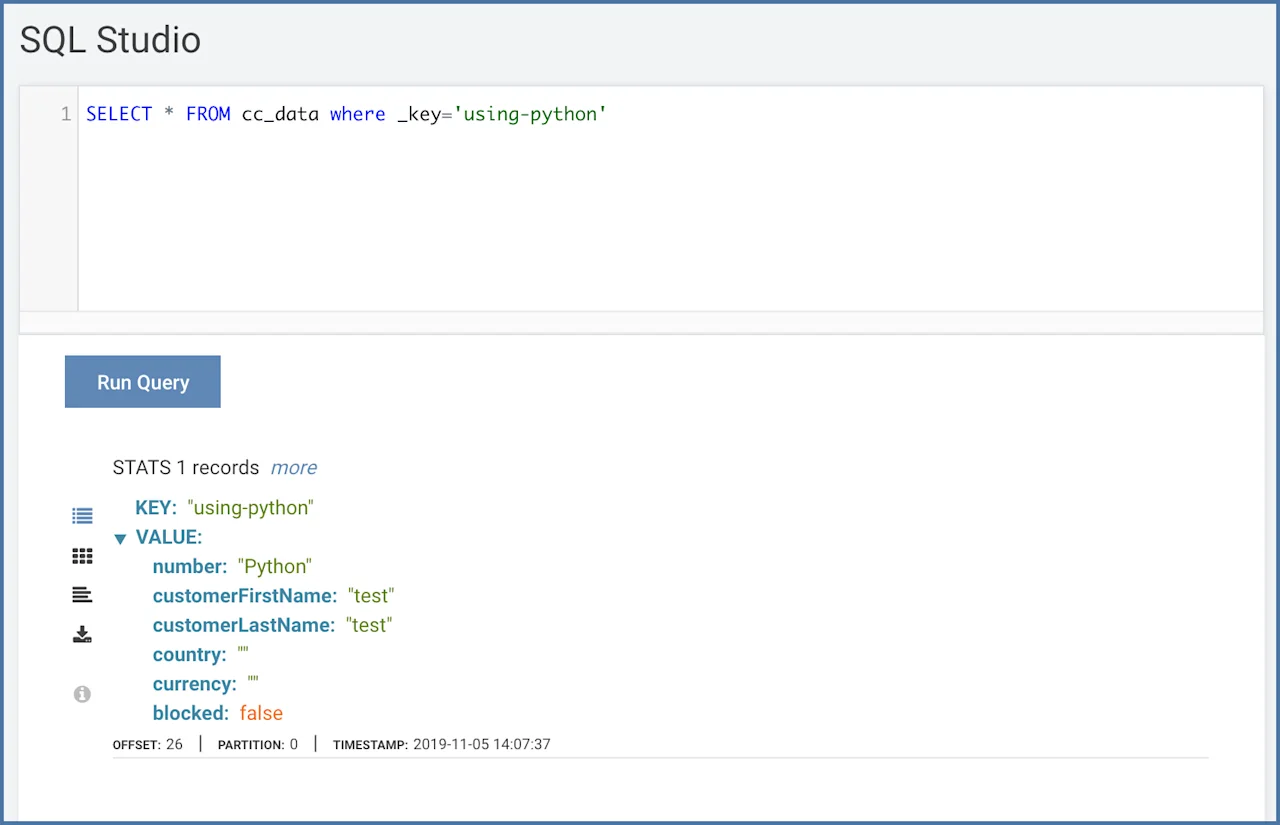
The output of insertData.py
INSERT
Additionally, the image that follows will also verify that the data is inserted in
the desired Kafka topic.
Conclusions
Using Lenses as a secure data access layer is a great way to safely open up Apache Kafka to more developers, users and applications. Learn more about Lenses from the different usecases or get access to a free trial.