
In Lenses 3.1 we introduced the ability to explore and discover data and metadata in Elasticsearch indices. All in the same self-service fashion that you currently use Lenses to explore data in your Kafka topics via a UI or CLI with SQL.
The unified visibility and data discovery is important to meet data governance requirements.
It's also very powerful for developers or data engineers to investigate whilst building or debugging a flow or microservice without all the back n fourths between different tools and teams.
In this blog post we are going to walk your through how to connect Lenses to an existing Elasticsearch server and explore data.
Pre-requisites
In order to be able to follow this blog, you will need the following:
- Lenses 3.1 (or a newer version when available) up and running. You can use our free Box instance if you want.
- An Elasticsearch server up and running.
- A working network connection between these two machines.
Creating the connection
In order for Lenses to be able to look at Elasticsearch indexes, you only need to create a connection using the relevant connection template from the Connection Manager.
First, you should go to the ADMIN
Connections
New Connection
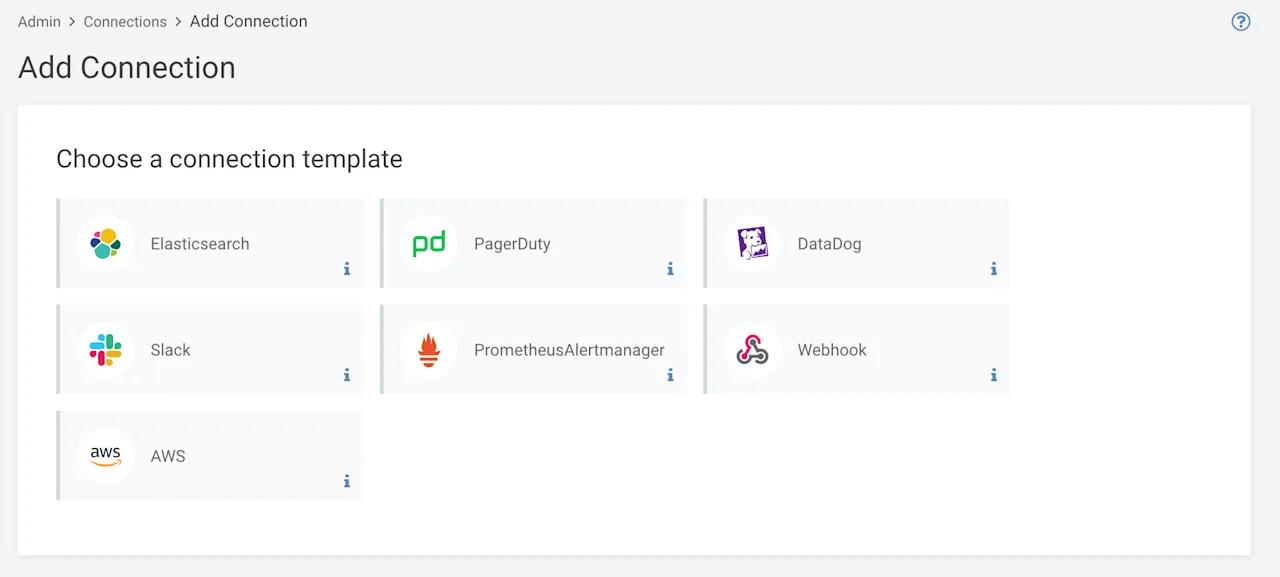
Click on Elasticsearch
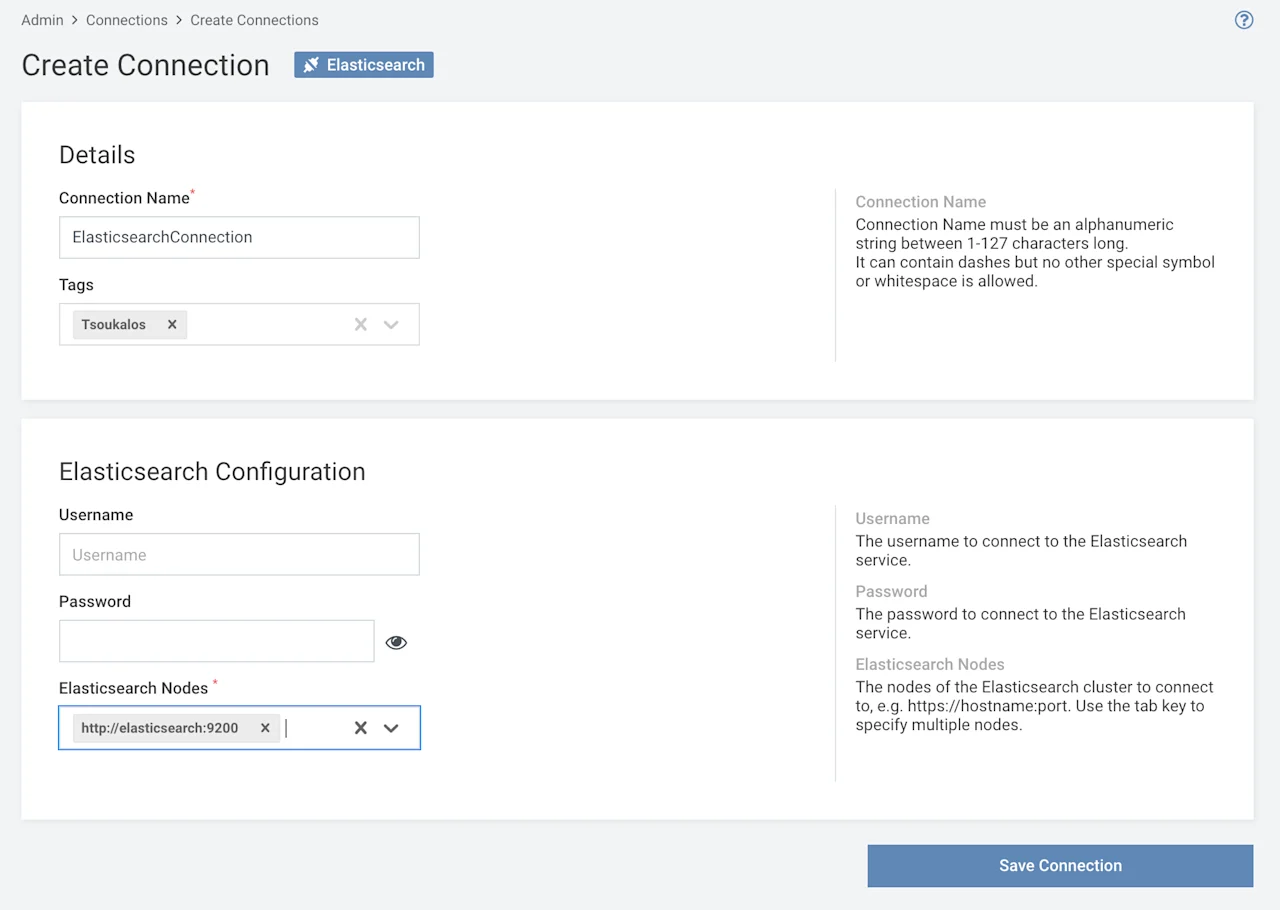
In this case, the hostname of the machine that runs Elasticsearch is Elasticsearch
9200
Now that you have given the required information, press the Save Connection
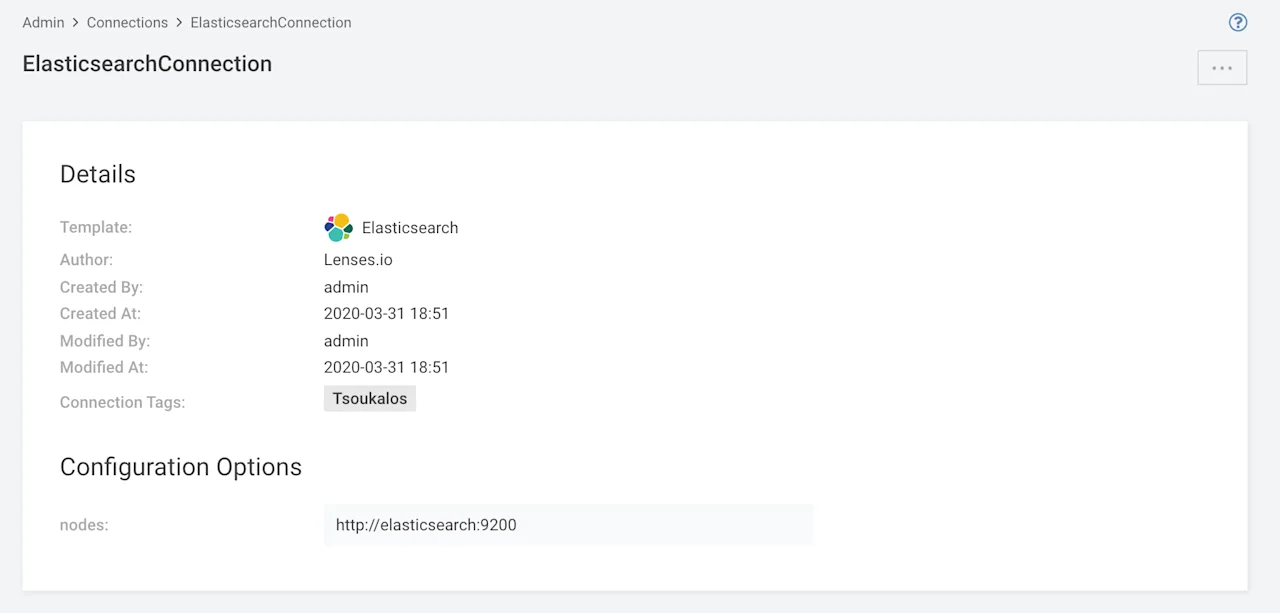
Your connection will be now listed on the Connections
ADMIN
After that you should go to the DASHBOARD
Elasticsearch Indexes
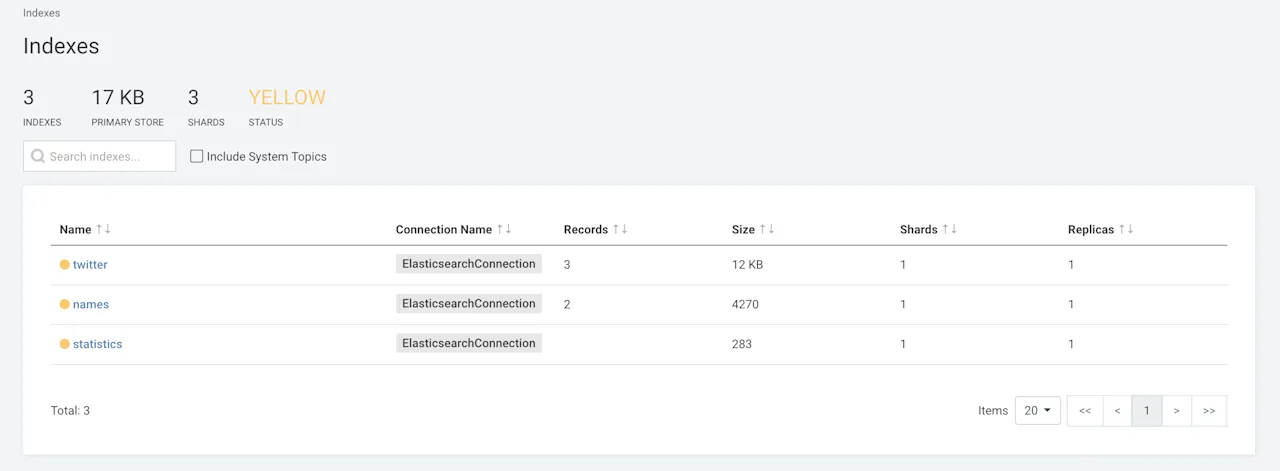
Clicking on the names
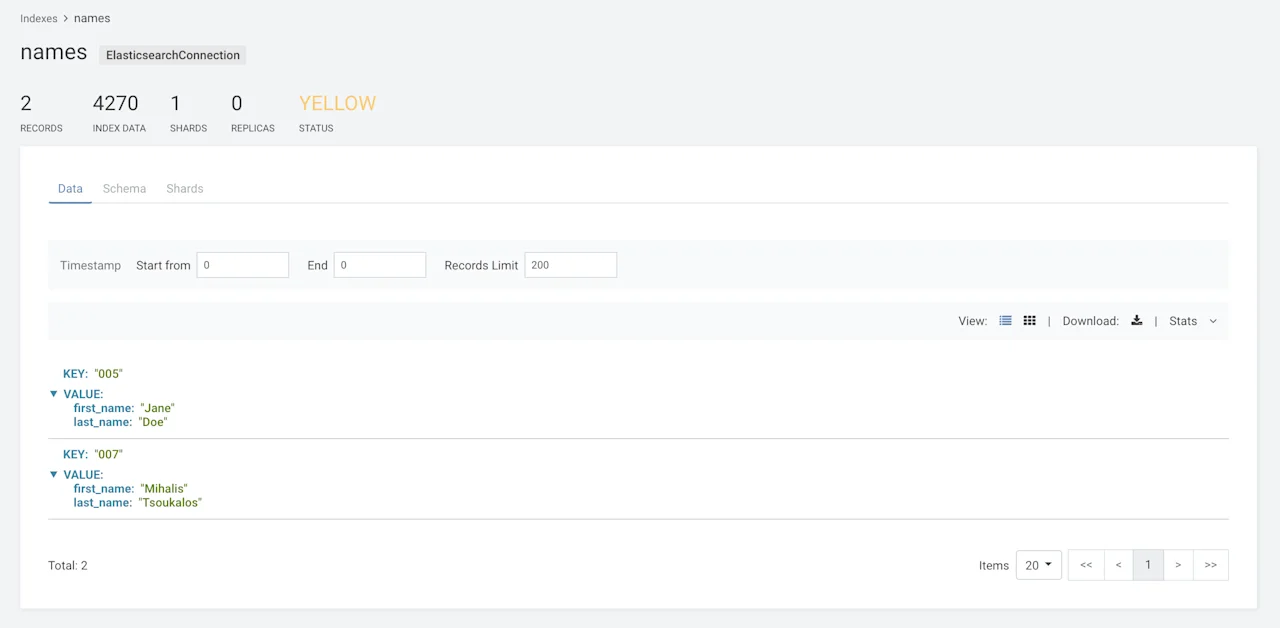
Not only does this give you visibility over indexes, metadata and entities in your Elasticsearch environment but also provides data observability, enabling you to explore data using the same SQL engine that our customers love for Kafka.
Next Steps
Now that you know how easy it is to view Elasticsearch indexes with Lenses 3.1, you should try it for yourself in your own environment.
Other Links
- Lenses Box 5 min tour
- Elasticsearch
- Lenses Features
- Lenses 3.1 full release notes